Insta Pro Features
Read Guide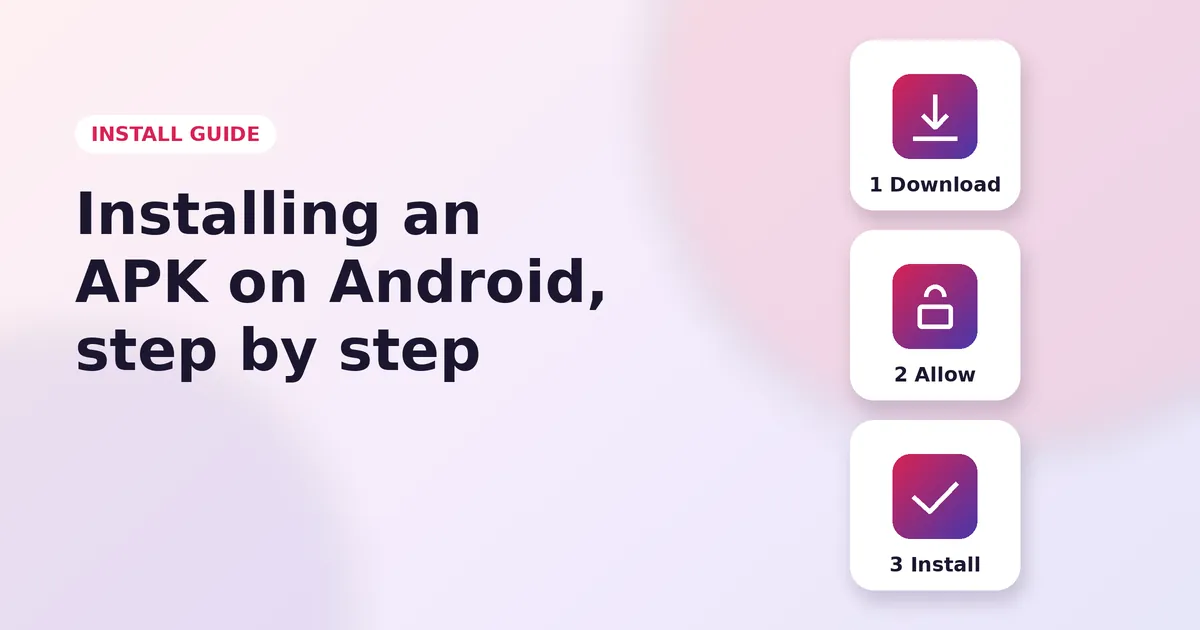
Installing Insta Pro takes about two minutes. Follow these six simple steps, and use the fixes below if Android shows an error.
Go to the download page and tap Download APK. Wait until your browser shows the download as complete.
Open the file. Android will say it cannot install apps from this source. Tap Settings and turn on Allow from this source. On older phones, the setting is called Unknown sources and sits under Settings, then Security.
Go back and tap Install. If Google Play Protect shows a message, read it and choose whether to continue.
Open Settings, then Apps, then Insta Pro, then Permissions. Allow the camera, microphone and photos. Deny anything unusual, such as SMS or call logs.
Open Insta Pro and log in with your Instagram account. If Instagram asks you to confirm the login, approve it in the official app or by email.
Go back to the Install unknown apps setting and switch it off for your browser. This keeps your phone protected.
Another app with the same package name is already installed. Uninstall it and try again.
The download is incomplete. Delete the file and download it again on a stable connection.
Your Android version is too old for this build. Update your phone or use an older Insta Pro version.
Play Protect has flagged the file. Do not force the installation. Download the APK again from a trusted source instead.
Download the latest APK and install it over your current app. Your login and settings stay the same. If you see a conflict error, uninstall the old version first.
Go to Settings, then Apps, then Insta Pro, and tap Uninstall. Then open the official Instagram app and log out of any sessions you no longer use, under Accounts Center, then Password and security, then Where you're logged in.
More Insta Pro guides